How to Type Cyrillic on Any Device: Complete Setup Guide
← BackYou've learned enough Cyrillic letters to recognize words. Now you want to actually type them. Maybe you're messaging someone in Russian, filling out a language exchange profile, or trying to search for something in Russian Google. Problem is, your keyboard shows Latin letters and you have no idea how to switch.
Good news: every major device supports Cyrillic typing natively. You don't need to buy a Russian keyboard or install any apps. The setup takes a few minutes on each platform. This guide walks you through all of them (Windows, Mac, iPhone, iPad, and Android), plus a few tips that will make the whole thing easier.
Which Keyboard Layout Should You Pick?
Before you start, a quick decision: every platform offers at least two Russian keyboard layouts, and picking the right one matters.
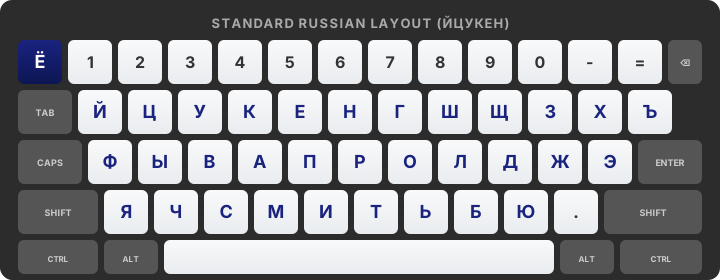
Standard Russian (ЙЦУКЕН): This is the layout used in Russia. The letters are arranged the way native Russians expect them. If you bought a keyboard in Moscow, this is what the labels on the keys would show. The problem? It has almost nothing in common with QWERTY. The Russian letter Й is where English Q is, Ц is where W is, and so on. If you learn this layout, you're essentially learning to type from scratch.
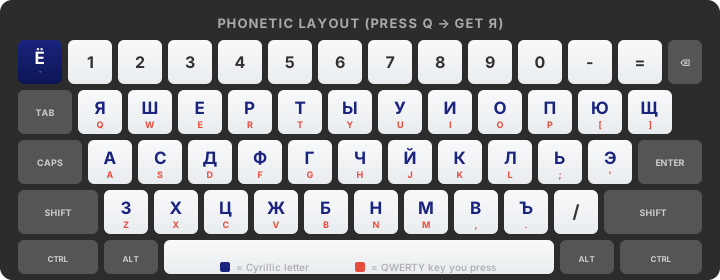
Russian Phonetic: This layout maps Cyrillic letters to the QWERTY key that produces a similar sound. Press A and you get А. Press K and you get К. Press V and you get В (which sounds like V in Russian even though it looks like B). This is much easier if you're coming from an English keyboard and aren't planning to become a Russian typist.
One catch: "phonetic" means different things on different systems. On a Mac (where the layout is called "Russian — Phonetic") and on Linux, every Russian letter sits on a single key. Windows works differently. Its version, called Russian Mnemonic, builds several letters from key sequences instead: you type c then h for ч, y then o for ё, y then a for я, and y followed by anything other than o or a for ы. That last one is the one that bites, because it makes typing ы followed by о awkward.
For most English speakers learning Russian, the phonetic layout is the right choice. You can start typing immediately without retraining your muscle memory. If you're serious about eventually working in Russia or typing long documents in Russian daily, the standard layout is worth learning, but you can always add it later.
The steps below cover both options on each platform.
How to Type Cyrillic on Windows 11 and Windows 10
Windows has solid built-in Russian support. The setup is identical on Windows 10 and Windows 11 with only minor UI differences.
Step 1: Open Settings. The fastest way is pressing the Windows key and typing "language settings."
Step 2: Go to Time & Language, then Language & Region.
Step 3: Under Preferred Languages, click "Add a language."
Step 4: Search for "Russian" in the list. Select Russian (Русский) and click Next.
Step 5: On the optional language features screen, you can uncheck "Set as my Windows display language" unless you want your entire operating system in Russian. Click Install.
Step 6: Windows will download and install the language pack. When it's done, you'll have the standard Russian ЙЦУКЕН keyboard available. If you want the phonetic layout instead, click on the Russian language you just added, click Options, then click "Add a keyboard" and choose Russian Mnemonic. It types several letters as key sequences rather than single keys, as described in the layout section above.
Step 7: To switch to Russian typing, press Windows Key + Space. You'll see a language indicator appear showing EN or RU. You can also click the language indicator in the bottom-right corner of your taskbar to switch.
A word of warning: do not click "Make Default" when setting up the Russian keyboard. If you do, Russian becomes your primary typing language and English becomes the secondary one, which is confusing if you're not ready for that. Keep English as your default and switch to Russian only when you need it.
How to Type Cyrillic on Mac (macOS)
macOS has the cleanest Russian keyboard setup of any platform. The whole process takes about thirty seconds.
Step 1: Open System Settings (called System Preferences on older macOS versions). You can find it in the Apple menu at the top-left of your screen, or press Command + Space and type "System Settings."
Step 2: Click Keyboard in the sidebar.
Step 3: Find the Input Sources section and click Edit (or the equivalent button on your version).
Step 4: Click the plus button (+) to add a new input source.
Step 5: Scroll down or search for Russian. You'll see several options: Russian (standard ЙЦУКЕН), Russian — Phonetic, and Russian — PC. For most learners, pick Russian — Phonetic. Click Add.
Step 6: Make sure "Show Input menu in menu bar" is enabled. This puts a small flag icon in your menu bar that shows which keyboard is active.
Step 7: To switch keyboards, press Control + Space (or Caps Lock if you've enabled it as a keyboard switcher in Keyboard settings). You can also click the flag in your menu bar and pick Russian from the dropdown.
A handy trick: if you forget which Cyrillic letter is on which key, click the flag in your menu bar and select "Show Keyboard Viewer." A floating keyboard appears on screen showing exactly what each key produces in the current layout.
How to Type Cyrillic on iPhone and iPad (iOS)
Apple makes this simple. The steps are identical on iPhone and iPad.
Step 1: Open the Settings app.
Step 2: Tap General, then Keyboard, then Keyboards.
Step 3: Tap "Add New Keyboard."
Step 4: Scroll down the list and tap Russian. (iOS only offers the standard ЙЦУКЕН layout for Russian, with no built-in phonetic option on mobile.)
Step 5: The Russian keyboard is now active. To switch to it while typing, tap and hold the globe icon (🌐) at the bottom-left of the keyboard, then select Russian. A quick tap on the globe cycles through your enabled keyboards.
If you need a phonetic layout on iOS, you can install a third-party keyboard app from the App Store. Just be aware that third-party keyboards have access to what you type, so stick with reputable ones if you go this route.
How to Type Cyrillic on Android
Android's setup depends on which keyboard app you use. Most Android phones come with Google's Gboard, which handles Russian natively. If your phone uses Samsung Keyboard or SwiftKey, the process is similar but the menu names differ slightly.
For Gboard (most Android phones):
Step 1: Open any app where you can type, like Messages or Gmail. Tap on a text field to bring up the keyboard.
Step 2: Tap the gear icon or the settings icon on your keyboard. On newer Gboard versions, tap the three dots in the top-left of the keyboard to access settings.
Step 3: Tap Languages, then "Add keyboard."
Step 4: Search for Russian and tap it. You'll see multiple layout options including ЙЦУКЕН (standard) and several phonetic variants. Pick the one that suits you and tap Done.
Step 5: To switch to Russian while typing, tap and hold the spacebar (a language menu pops up) or tap the globe icon if it's visible on your keyboard.
For Samsung Keyboard: Open Settings, then General Management, then Samsung Keyboard Settings, then Languages and Types. Tap "Manage input languages" and toggle Russian on. Switch using the globe icon or by swiping the spacebar.
Tips That Will Save You Frustration
Get keyboard stickers. If you plan to type in Russian regularly, clear Cyrillic keyboard stickers are the cheapest and most useful accessory you can buy. Stick them onto your existing keyboard keys and you can see both alphabets without squinting. They cost a few dollars on Amazon.
Use an on-screen keyboard viewer when you're starting out. Windows, Mac, and Linux all have built-in keyboard viewers that show a floating picture of your current keyboard layout. This is much easier than trying to memorize which QWERTY key produces which Cyrillic letter.
Turn on the language indicator. Every platform lets you show which keyboard is currently active. Turn this on. Accidentally typing Russian when you meant English (or vice versa) produces gibberish that's easy to avoid if you can see at a glance which mode you're in.
Learn the switching hotkey cold. On Windows it's Windows + Space. On Mac it's Control + Space (customizable). On mobile it's the globe icon. Internalize this so switching becomes reflexive rather than an interruption.
Remember Ё. The letter Ё is not where you'd expect it on most layouts. On standard ЙЦУКЕН, it's in the top-left corner where you'd expect the tilde (~) on an English keyboard. On the phonetic layouts it varies: Windows Russian Mnemonic types it as y then o, while other phonetic layouts often put it behind a modifier key. If you're curious why this letter is its own whole situation, we've got a dedicated article on the strange history of Ё.
When You Just Need One Character Quickly
Setting up a keyboard makes sense if you type Russian regularly. If you just need a Cyrillic letter or two for a username, a design project, or to paste into a translator, a keyboard setup is overkill. Our Cyrillic copy-and-paste tool gives you every letter in the alphabet (including accented letters and pre-reform characters) with one-click copying. No installation, no configuration, works on any device.
For learning the actual letters and their sounds, the Russian alphabet chart with audio has all 33 letters and example words. Learning the alphabet first makes the keyboard layout way less intimidating.
Got your keyboard set up? Try it out in the text builder on our copy-and-paste page. Switch to your Russian layout, type a few words straight into the box, and click any letter tile for a character you cannot find yet.
TRY YOUR NEW KEYBOARDWhich Platform Is Easiest?
Ranking from easiest to hardest for first-time Cyrillic typists: Mac, then Windows, then iPhone and iPad tied, then Android. Mac wins because its phonetic layout is built in and puts every Russian letter on a single key. Windows requires adding its Russian Mnemonic layout, which types several letters as key sequences. iOS is simple but only offers the standard ЙЦУКЕН layout, which is harder for beginners. Android's setup varies by keyboard app, which makes the process a little inconsistent.
The good news is that once you set it up on one device, you rarely touch the settings again. Five minutes of configuration buys you months of convenient Russian typing. And if you're planning to learn the language seriously, you might as well tackle the standard ЙЦУКЕН layout eventually. Muscle memory builds faster than you'd think, and Russian keyboards in Russia will all use that layout.
Troubleshooting Common Issues
I added the keyboard but I don't see a switcher. Make sure the language indicator is enabled. On Windows, it should appear in the taskbar automatically. On Mac, toggle "Show Input menu in menu bar" in Keyboard settings. On iOS, you need at least two keyboards enabled for the globe icon to appear.
My keys produce Cyrillic when I'm trying to type English. You're in Russian mode. Press your switching hotkey once to go back to English.
I can't find the phonetic layout on iOS. iOS doesn't include one natively. You'll need a third-party keyboard app, or you can use the standard layout and rely on the on-screen keyboard to find letters.
My Cyrillic shows up as boxes or question marks. This is a font issue, not a keyboard issue. The app or website you're using doesn't have a font installed that supports Cyrillic. Try a different app. This is rare on modern systems but occasionally happens in older software.
I need to type Russian on a shared computer where I can't install anything. Use an online virtual Russian keyboard. Several free websites let you type Russian via an on-screen layout and copy the result. Our copy-and-paste tool works in this scenario too, including the text builder for longer phrases.